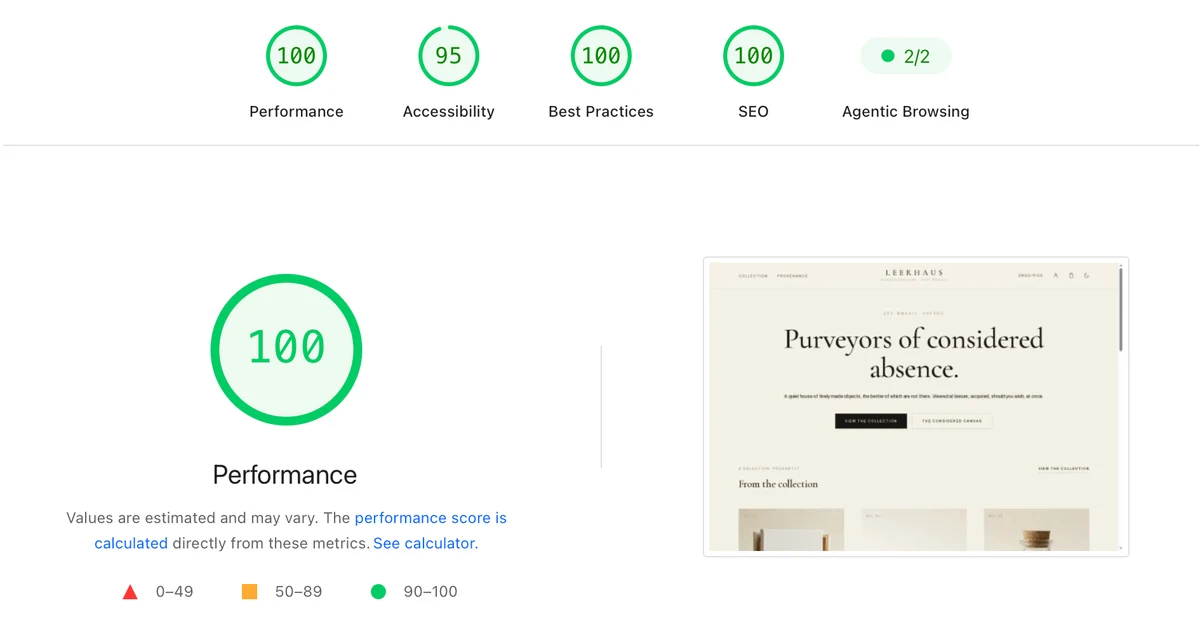
Slow or unstable WordPress sites aren’t just frustrating, they cost you customers, SEO rankings, and revenue. The good news? You can fix most performance issues without a complete rebuild.
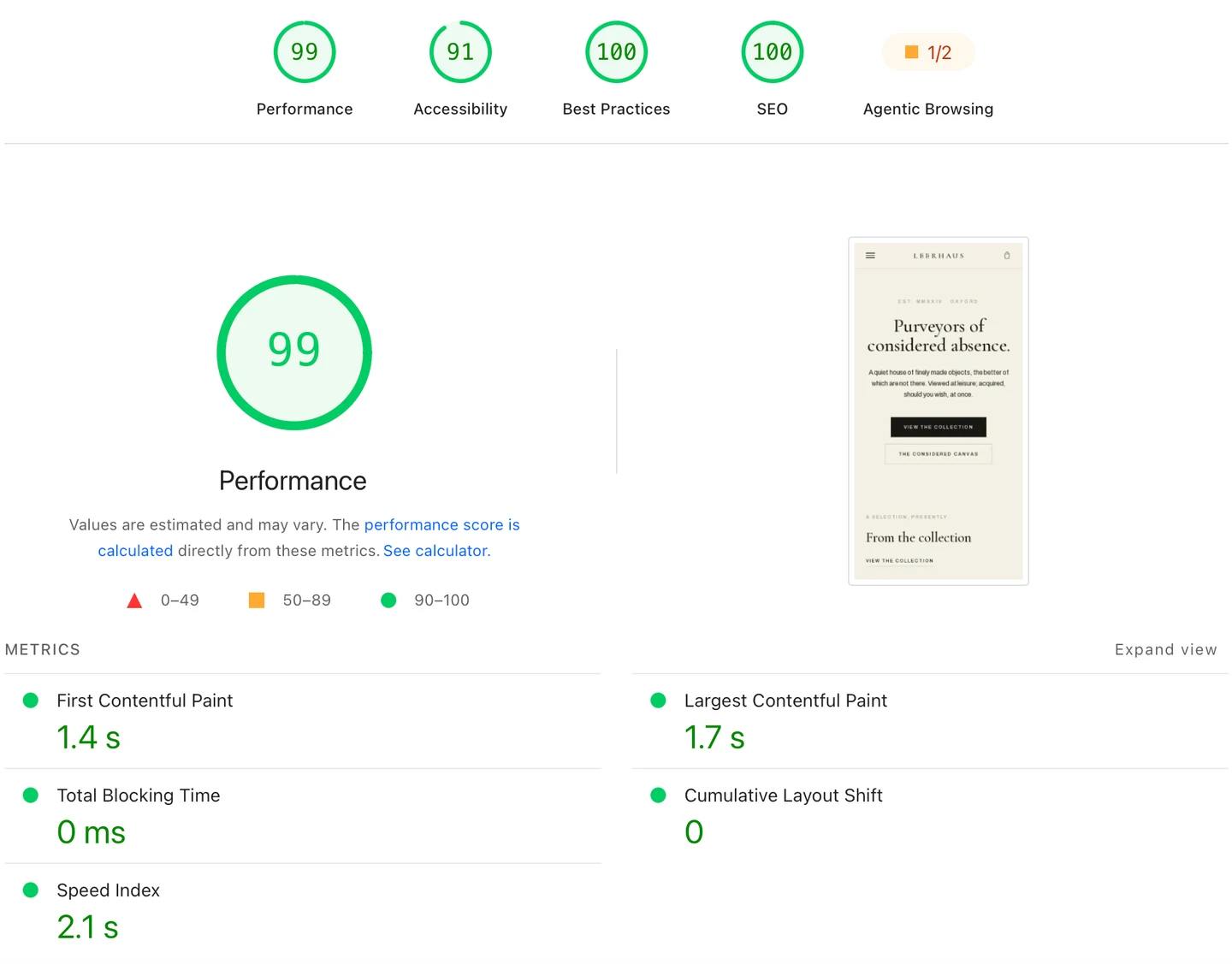
The goal, on a real client site: 99 on mobile, 100 on desktop, and Core Web Vitals all in the green.
Here’s our proven optimisation process we use when working on high-traffic and mission-critical WordPress sites.
1. Profile the performance bottlenecks
Before touching code, identify what’s actually slowing your site down.
- Use Query Monitor to find slow database queries and memory hogs.
- Check your PageSpeed Insights report to spot render-blocking assets.
- Use your hosting dashboard or SSH with top / htop to track CPU and RAM spikes.
Tip: Don’t guess. Optimisation without profiling is like fixing a car without opening the bonnet.
2. Enable full-page caching
Caching turns dynamic pages into static HTML, massively reducing server resource consumption and database queries.
This means pages can be served almost instantly, especially when paired with a CDN.
We’d always recommend server based caching where possible, otherwise, our go to plugin is WP Rocket.
Tip: Always test after enabling caching to ensure forms, carts, or membership pages still work correctly.
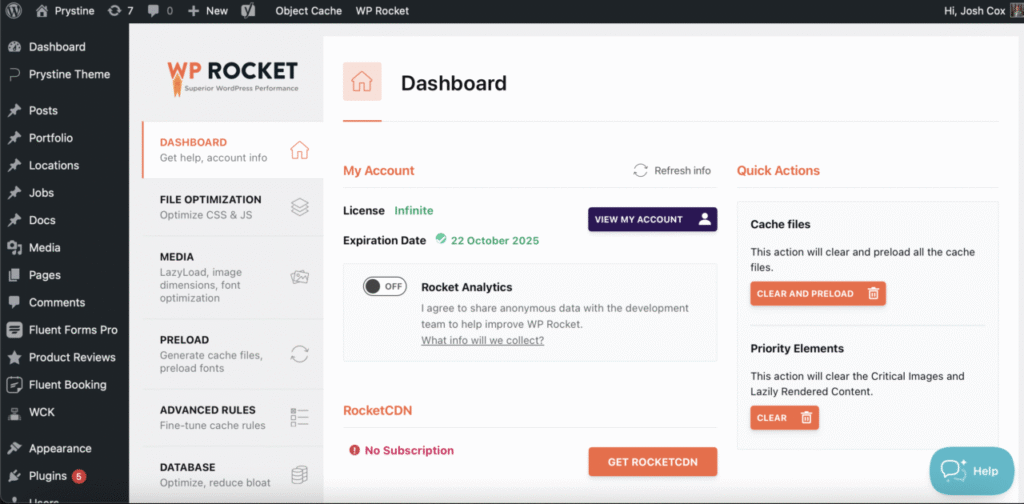
WP Rocket Dashboard
3. Add an object cache (such as Redis)
For sites with complex queries (WooCommerce, LMS, directories), object caching stores frequently used Database results in memory.
Our go-to plugin is Redis Object Cache and naturally you have to have Redis running on your server for this to work.
4. Optimise your database
Over time, WordPress databases collect “junk” that slows down queries.
We regularly review and carry out these common optimisations:
- Remove old post revisions, spam comments, and transients.
- Clean up the Action Scheduler tables (common WooCommerce culprit).
- Run OPTIMIZE TABLE via phpMyAdmin or WP-CLI to reclaim space.
5. Reduce HTTP requests
Every script and stylesheet adds load time.
Here’s what you can do:
- Disable unused plugins, especially ones loading assets site-wide.
- Combine and minify CSS/JS files (if your caching solution supports it).
- Use wp_dequeue_script in functions.php to remove unnecessary scripts from pages that don’t need them.
- Here’s looking at you Emoji support

6. Optimise images & media
Large, unoptimised images are a common performance killer.
We’ve seen images in the 10s of MegaBytes uploaded to sites. That’s a serious drag on load speeds.
- Use next generation formats (like WebP) where possible.
- Compress images with tools like ShortPixel or Imagify.
- Implement lazy loading for below-the-fold media.
7. Use a CDN for global reach
A CDN (Content Delivery Network) stores your assets on multiple servers worldwide.
Our go-to is CloudFlare as they have a very generous free tier, but also our hosting comes pre-packaged with a built-in optimisation suite and CDN.
8. Keep WordPress core, theme & plugins updated as well as the PHP version
Old versions of software can introduce not only security issues but also performance bugs and bottlenecks.
Here are some best practices when carrying out updates:
- Use a staging site to test updates before pushing to production.
- Have regular backups in place.
- Remove plugins you no longer use instead of just deactivating them.
9. Monitor & maintain
Optimisation isn’t a one-time task.
- Set up uptime monitoring with UptimeRobot or Better Uptime.
- Schedule a monthly or quarterly site audit to keep performance in check.
- Watch for database growth and clean up regularly.
Final words
A well-optimised WordPress site loads faster, handles more traffic, and can costs less to host, – depending on your hosting plan & environment. For businesses, that translates directly into better SEO, improved user experience, and higher conversion rates.
If your site is slow, start with caching and database clean-ups, they often deliver the biggest gains for the least effort.

Josh Cox
I'm Josh — I build, host and look after WordPress sites (and increasingly fast Astro / Next.js builds) for Oxfordshire businesses, from Didcot, since 2016. I also tinker with a few products of my own on the side.